The Beginning of Pyculator
What Is a Pyculator?
Deciphering file permissions can confuse the untrained observer. Can you read the following input and output?
$> ls -la
total 8
drwxr-xr-x  4 user user  128 Jan 9 12:32 .
drwxr-xr-x  5 user user  160 Jan 9 12:40 ..
-rw-r--r--  1 user user  175 Jan 9 12:32 pyculator.py
-rwx------  1 user user    0 Jan 9 12:12 testfile.txt
If so, today’s exercise may feel familiar. We are going to start a permissions calculator in Python. It will begin by reading the permissions on files, and we will add more functionality in the future.
You may be thinking, “Just files?” Well, yes! In the Unix world, everything is a file, including the things we call directories. Windows users, you may as well follow suit. Windows has changed over the years, and with the Windows Subsystem for Linux and other integrations, it is adopting things that work. There’s no hate here about which operating system we choose; they all have distinct, powerful features.
Exercise Setup
You should already have an integrated development environment (IDE). If not, our two-part vim and Python 3 series shows how to set one up. You’re also welcome to bring your own IDE to the party. Let’s get to the terminal and create a project directory:
$> mkdir pyculator
$> cd pyculator
Create the pyculator directory.
We need two files for this exercise: the ones shown in the output above. Let’s create them with touch:
$> touch pyculator.py testfile.txt
$> chmod 700 testfile.txt
Create the files needed for today.
Reading Time!
I know you want to get something done right now, and you’re already reading my wall of text. Still, take a look at the Python documentation for the module we’ll use, Interpreting stat() results. You don’t have to read every word. Train yourself to scan for keywords, bold and italic text, code blocks, lists and highlighted items. When something catches your attention, read what comes before and after it.
For a permissions calculator, have you thought about what Pyculator should do?
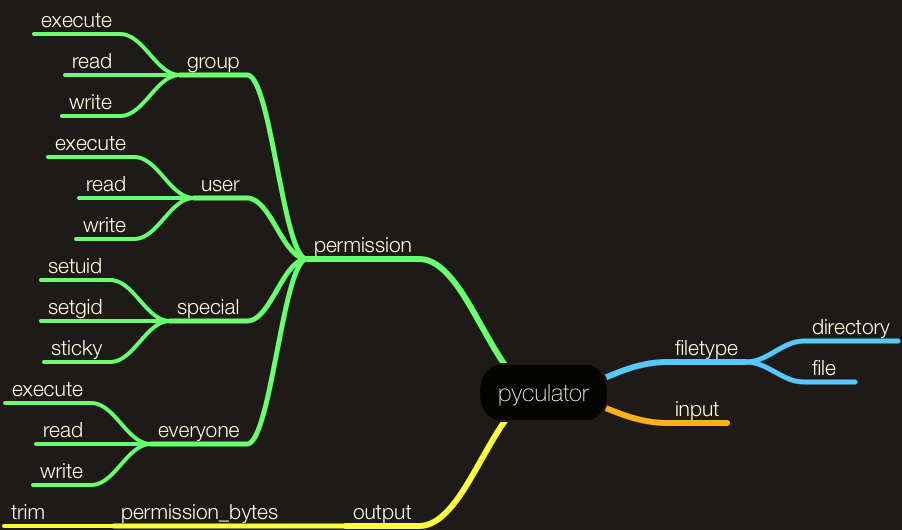
Mind map for Pyculator
We won’t implement everything in the mind map, but it shows what one can look like.
If you aren’t familiar with mind maps, they’re very useful for an exercise like this one. When you map out high-level items like file types, permissions, input and output, your mind starts to see the complete picture and break it down into smaller pieces. Of course, a simple list works too.
I use pen and paper to sketch ideas on the go, MindNode for a clean digital experience and OmniFocus for tasks. MindNode can track tasks on nodes, but it exports well to OmniFocus, which is where I track all of my tasks.
vim pyculator.py
We’re ready to go, so let’s go!!! The .py extension isn’t required if you run the script directly, but I keep it to avoid confusion. We are also adding a shebang (#!) line at the top of the script, which tells the system to run it with Python 3.
#!/usr/bin/env python3
import os, stat

# Assign a filename to a variable so we can reuse it. Think about how you would take input from the user.
strFile = "./testfile.txt"

# Read the manual for definitions.
st = os.stat(strFile)
strPermission = oct(st.st_mode)

# Output our information to the user in a clean format.
print("Permissions for " + strFile + " are: " + strPermission)
The start of our Pyculator.
Once you’ve saved your code, give it a go at the terminal. If you get an error, read it. If it’s unclear, a quick internet search should help, but the best answers are in the manual. Don’t forget to check your syntax!
$> python3 pyculator.py
Permissions for ./testfile.txt are: 0o100700
Result of our Pyculator.
Do you understand the output? It’s the file’s mode: a number that stores both the file type and its permissions, shown in octal (base 8). Python marks octal numbers with the prefix 0o. The 100 tells us this is a regular file. For our exercise, we want the last FOUR digits. Really, we want the last THREE, because the first of the four is reserved for special permissions that we won’t dig into today. These four digits are the same numbers you would pass to the chmod (change mode) command.
Let’s break down the FOUR digits: 0700.
The first digit, 0, holds the special permissions. It’s usually zero, meaning none are set. Otherwise it’s a sum of 4 for setuid, 2 for setgid and 1 for the sticky bit. In ls output, these appear as an s or t in place of an x. The leading d or - that ls shows is the file type, which comes from the other part of the mode.
The second, third and fourth digits, from left to right, are the permissions:
- The second digit is for the owner of the file.
- The third digit is for the group that owns the file.
- The fourth digit is for everyone else.
#!/usr/bin/env python3
import os, stat

# Assign a filename to a variable so we can reuse it. Think about how you would take input from the user.
strFile = "./testfile.txt"

# Read the manual for definitions.
st = os.stat(strFile)
strPermission = oct(st.st_mode)
strPermission = strPermission[-4:] # Keep only the last FOUR digits.

# Output our information to the user in a clean format.
print("Permissions for " + strFile + " are: " + strPermission)
Returning the digits we need by trimming the output.
Running it now prints Permissions for ./testfile.txt are: 0700. Those last THREE digits matter later, when we translate the output into a human-readable format. Let’s look at the possibilities. This list will be useful for future features, but not today.
7, read, write, execute   rwx
6, read, write            rw-
5, read, execute          r-x
4, read                   r--
3, write, execute         -wx
2, write                  -w-
1, execute                --x
0, none                   ---
Did your project work?
What logic would you use with this list to make the application less long-winded? You don’t need to write a line of code for every possible output. Loops and if statements will help you, and the people who read your code after you.
Make the machines work for you until they become conscious, then proceed with care.
Closing Bytes and Bits
Learning a programming language is a lot of fun when you set goals. It’s very rewarding to meet them by finishing a script or program that changes the way people interact with computers.
Sure, there are hundreds of applications out there: calculators, messaging platforms, social networks. But how many Pyculators have you seen?
You may ask why I’d spend time on a project like this when someone has already done it. I’ve heard that a lot, in person and on internet forums, when people ask for help or bring up a simple application idea.
Right, someone has done these things. But learning the fundamentals first, learning from what failed for others and knowing what worked will take us to the next level! “Who is going to fix these things when the engineers of the past are gone?” is my question to the naysayers.
Reaching the goal can be difficult, but there are many resources to help you develop a solution. We just need to learn, observe and ask questions.
I hope you enjoyed this article. Take Pyculator to the next level!
Thank you for reading.
Written with Python 3.10.
Edited in October 2026 for grammar and accuracy. The original script started with #!/usr/bin/python, which on macOS at the time ran Python 2.7 and printed 0100700. It now runs under Python 3, as the rest of this series does. The explanation of the special-permission digit was also corrected.
Note, October 2026: Since this post, macOS 12.3 removed Python 2.7, so /usr/bin/python no longer exists on current Macs. Use python3.